How to reshape your face in a photo on iPhone
Change face width, jaw, chin, cheekbones, eyes, brows, nose and lips in a photo with Face Reshape in Expression Editor - Reshot AI, one slider at a time.
Open the photo in Expression Editor - Reshot AI, go to Face Studio and choose Face Reshape. Tap the face, pick a slider (for example Face Width, Jaw or Nose Width), move it a little, compare with the original and save.
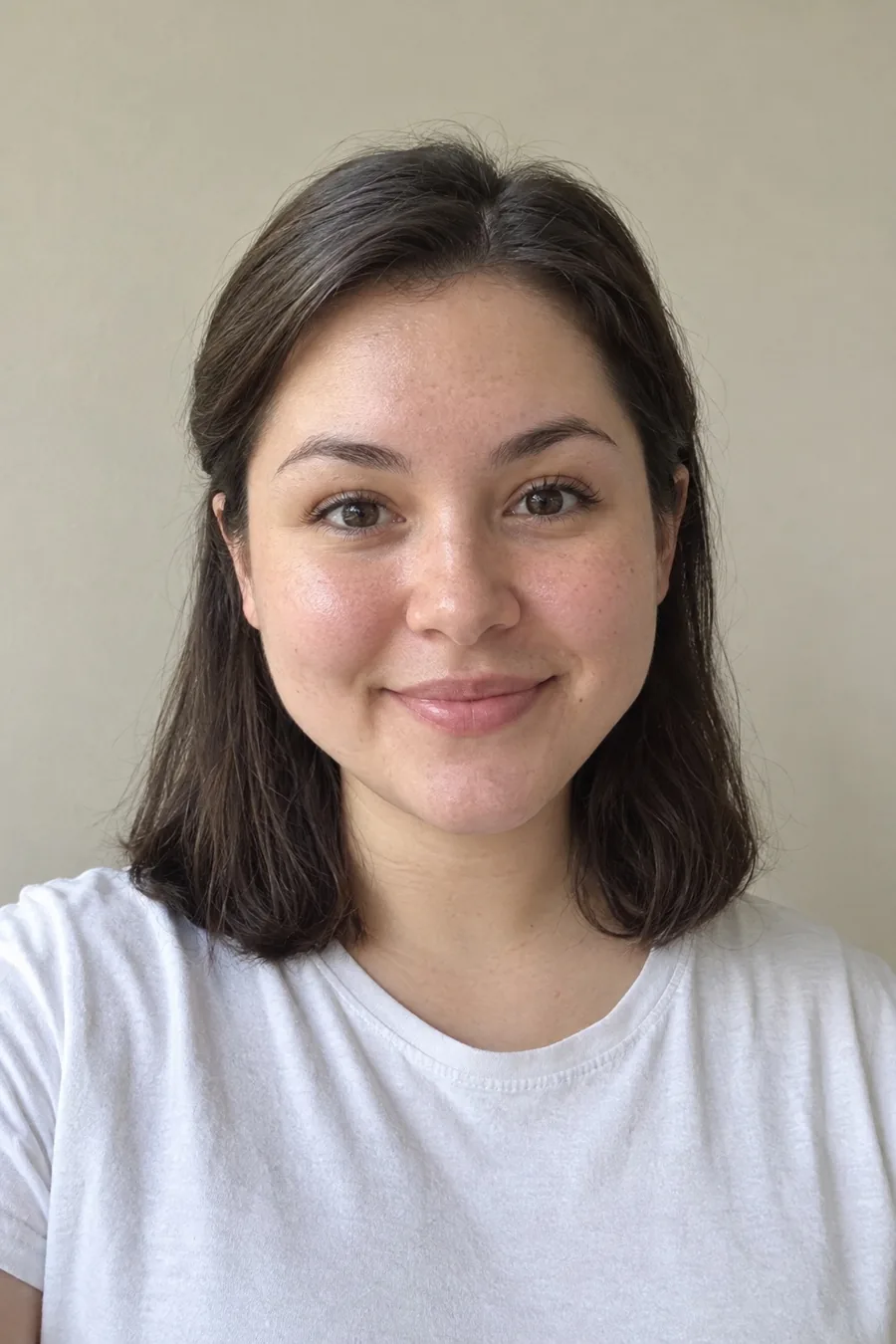
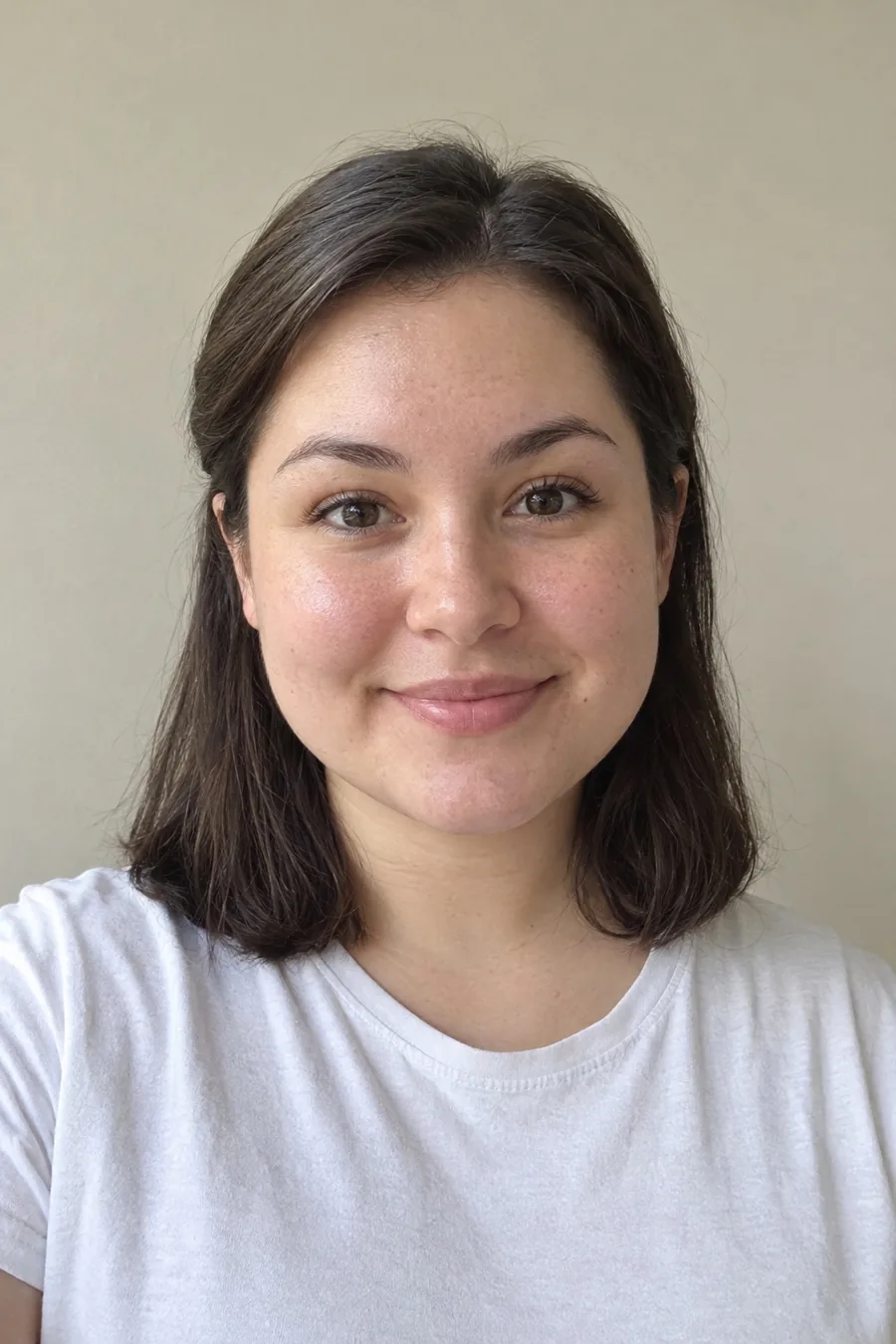
Every Face Reshape slider
Face Reshape has a separate slider for each part of the face. Most start in the middle and go both ways, so you can make a feature smaller or larger.
| Slider | Moves between |
|---|---|
| Face Width | Wider ↔ Slimmer |
| Jaw | Wider ↔ Narrower |
| Chin | Shorter ↔ Longer |
| Cheekbones | Softer ↔ Fuller |
| Forehead | Smaller ↔ Larger |
| Smile | Natural → Smile |
| Eye Size | Smaller ↔ Bigger |
| Eye Distance | Closer ↔ Wider |
| Brow Lift | Lower ↔ Higher |
| Brow Arch | Flatter ↔ Arched |
| Brow Tilt | Softer ↔ Lifted |
| Brow Length | Shorter ↔ Longer |
| Brow Thickness | Thinner ↔ Thicker |
| Nose Width | Wider ↔ Slimmer |
| Nose Length | Longer ↔ Shorter |
| Nose Tip | Larger ↔ Smaller |
| Mouth Width | Narrower ↔ Wider |
| Lip Height | Thinner ↔ Fuller |
Where to start
Photos change faces in predictable ways. A wide phone lens held close makes the nose and the middle of the face look bigger; a low camera makes the jaw and chin look heavier; a high camera makes the forehead look larger. Start with the feature the camera changed, not the one you like least. One or two small changes usually do more than ten.
Keep the face recognisable
- Move each slider in small steps and compare with the original after each one.
- Change one feature at a time. Faces are read as a whole, so three small edits add up.
- Zoom out before saving. A change that looks subtle at full screen can look obvious in a small profile picture, and the other way around.
- Use the eraser to paint back hair, earrings or a hand that moved with the edit.
Group photos
Tap the face you want to change. Face Reshape works on one person at a time, so the people around them stay as they are.
Step by step
Open the photo
In Expression Editor - Reshot AI, open Face Studio and pick a photo.
Choose Face Reshape and tap a face
In a group photo, tap the person first.
Pick a slider
Face Width, Jaw, Chin, Cheekbones, Forehead, eyes, brows, nose or mouth.
Move it a little
Small steps. Compare with the original after each one.
Erase and save
Paint back anything that moved by mistake, then save.
Try it on your own photo
Download Expression Editor - Reshot AI on the App Store.
Questions
Can I make my face look slimmer in a photo?
Yes. Move the Face Width slider toward Slimmer, and the Jaw slider toward Narrower if the jaw looks heavy. Small amounts keep the face recognisable.
Can I change only my nose?
Yes. Nose Width, Nose Length and Nose Tip are separate sliders, and nothing else on the face moves.
Can I undo a reshape later?
Undo steps back through every change, and moving a slider back to the middle removes that change.