How to smooth skin in a photo without the plastic look
Smooth skin, heal spots and even the tone in a photo while keeping pores and texture, with Face Retouch in Expression Editor - Reshot AI.
In Expression Editor - Reshot AI, open Face Studio and choose Face Retouch. Heal Spots first, then a little Smooth Skin and Even Tone. Use the Detail slider to bring texture back if the skin looks flat, and compare with the original before you save.

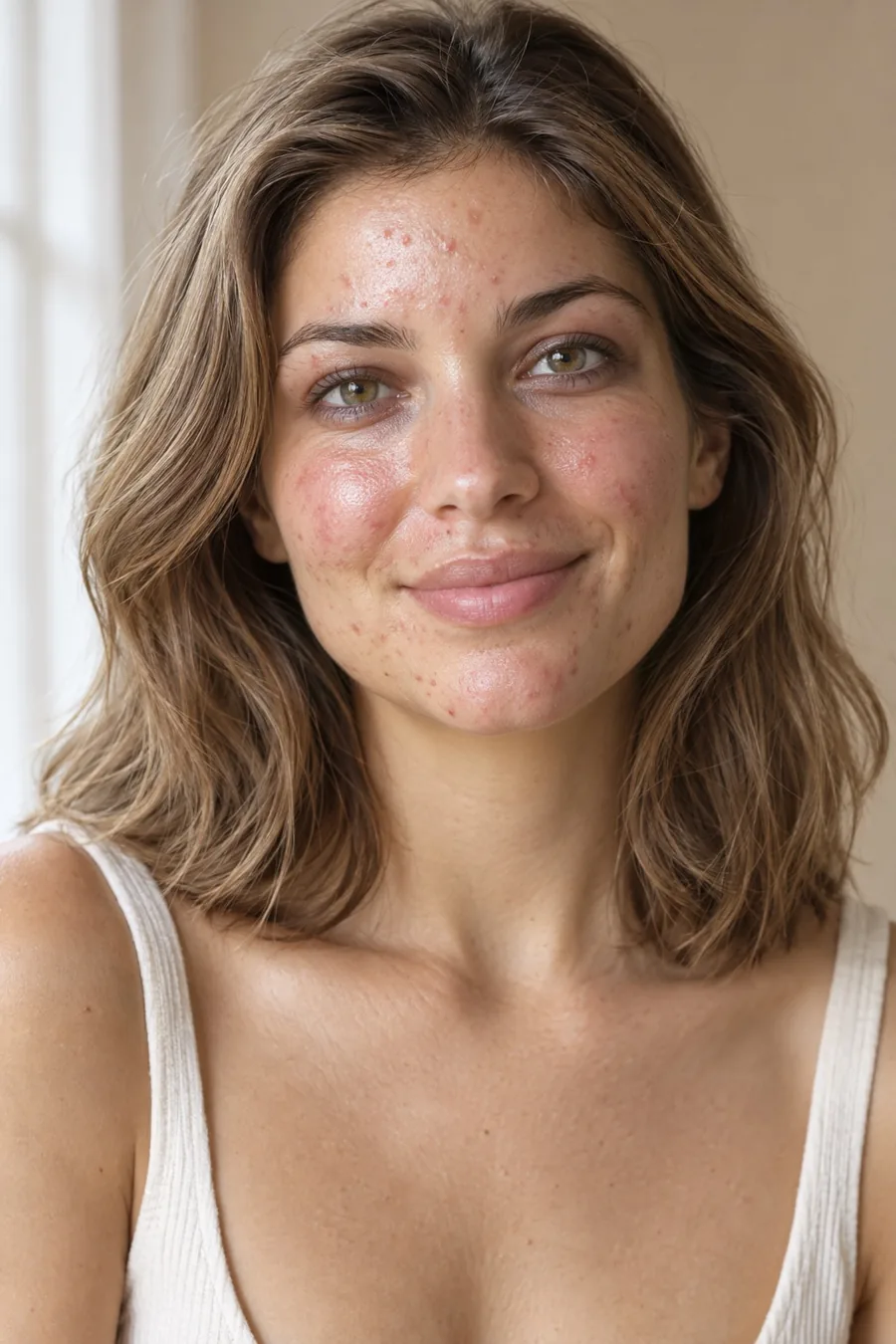
Why smoothing looks fake
Real skin has pores, fine lines and small changes in color. Heavy smoothing blurs all of it, and the face starts to look like plastic next to sharp hair and eyes. The trick is to remove what distracts (a spot, redness, shine) and keep the texture that tells the eye it is looking at skin.
The Face Retouch tools
- Heal Spots: takes away small spots and blemishes.
- Tap to Remove: tap a single spot anywhere in the photo; the brush size goes from small to large.
- Smooth Skin: softens skin, from off to full.
- Even Tone: evens out redness and blotches.
- Remove Shine: tames shiny forehead, nose and cheeks.
- Detail: from softer to sharper, to bring back texture.
- Skin Colour, Brighten Eyes, Whiten Teeth, Define Brows, Hair Colour and Eye Colour.
An order that works
- Heal Spots, then Tap to Remove for anything it missed.
- Even Tone for redness.
- Remove Shine if the light was harsh.
- Smooth Skin, lower than you think.
- Detail toward Sharper if the skin now looks flat.
Only the area you change is edited, and skin texture is kept, so a light touch goes a long way.
One face or everyone
Face Retouch can go to everyone in the photo at once, which keeps skin consistent across a group shot. To retouch only one person, tap them first.
Step by step
Open the photo
In Expression Editor - Reshot AI, open Face Studio and pick a photo.
Choose Face Retouch
Tap a person, or choose everyone in the photo.
Heal and even
Heal Spots, Tap to Remove and Even Tone first.
Smooth a little
Keep Smooth Skin low and add Detail if the skin looks flat.
Compare and save
Check the before and after view at full size, then save.
Try it on your own photo
Download Expression Editor - Reshot AI on the App Store.
Questions
Can I remove a single pimple?
Yes. Use Tap to Remove and tap the spot, or Heal Spots for the whole face.
Will smoothing blur the eyes and hair?
Smooth Skin works on skin. Compare with the original and use the eraser on any area you want exactly as it was.
Can I fix shiny skin?
Yes. Remove Shine tames shine on the forehead, nose and cheeks.